
Mastering Gmail keyboard shortcuts is one of the most effective ways to reduce the time you spend managing email and improve your overall workflow. Many professionals still depend on the mouse for nearly every action, which slows navigation, interrupts concentration, and creates avoidable friction throughout the day. When you adopt a keyboard first approach, Gmail becomes a faster and more predictable workspace. The following expanded guide explains how to understand, learn, and apply Gmail shortcuts in a practical and sustainable way and how a tool such as Simplehuman can reinforce these habits until they become second nature.
Why Keyboard Shortcuts Matter in Gmail
For anyone who processes dozens or even hundreds of messages each day, every additional click slows you down. Reaching for the mouse repeatedly introduces small delays that interrupt your rhythm. A keyboard based workflow eliminates these micro interruptions by converting common actions into instant commands. Instead of moving your hand away from the keyboard, finding the correct button, and clicking, you simply press a key and continue working.
This approach supports deeper focus and brings you to a state of flow. With keyboard commands, you no longer scan the screen for icons or menus. You stay mentally centered on the content of the message and the decision you must make. Over the course of a full week, these small efficiencies can save hours and reduce the fatigue associated with repetitive email management.
How to Enable Gmail Keyboard Shortcuts
Gmail does not enable its full shortcut set by default. You must turn them on before you can rely on them for everyday work. The process is straightforward:
- Open Gmail.
- Open Settings.
- Select the General tab.
- Scroll until you find the Keyboard Shortcuts section.
- Enable shortcuts and save your changes.
Once active, most inbox actions can be performed with a single key. This expands your control and allows you to manage email with significantly more speed and precision.
The Core Shortcuts Every Gmail User Should Know
Some shortcuts deliver an immediate and noticeable improvement in workflow. These are the commands you will use many times a day:
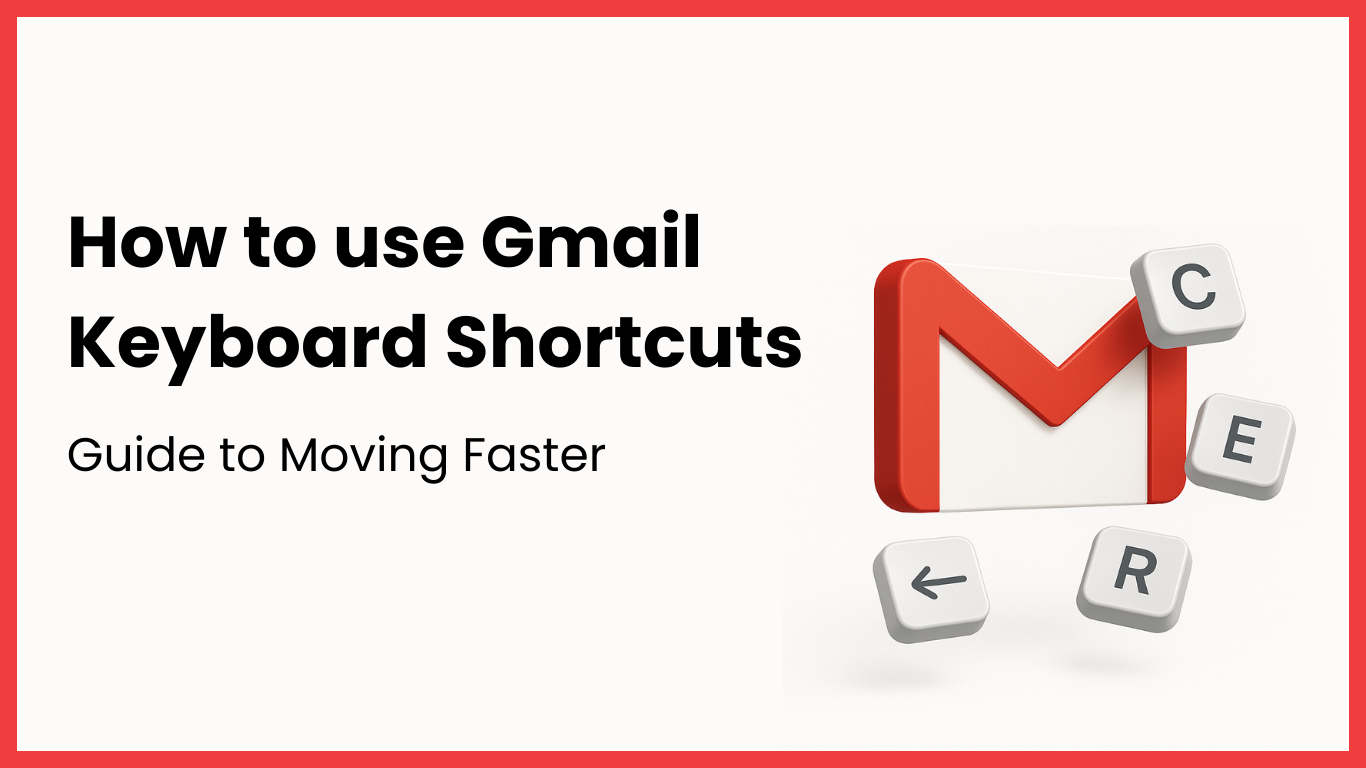
C to compose a new message
E to archive a conversation
R to reply
A to reply to all
F to forward
X to select a conversation
U to mark a message as unread
The slash key to jump directly to the search bar
These commands cover the actions that dominate everyday email management. Mastery of these keys alone eliminates a large percentage of unnecessary mouse movement and creates a smoother, more efficient experience.
How to Learn Shortcuts Without Feeling Overwhelmed
Many users attempt to memorize every shortcut at once and quickly give up. The human brain learns best through repetition and gradual expansion. Start with a small set of essential shortcuts. Use them consistently until they become automatic. After that, add a few more. This incremental approach transforms learning from a chore into a natural progression.
Simplehuman supports this learning curve by providing subtle on screen cues. When you perform an action with your mouse, the tool displays a gentle reminder of the shortcut that could have completed the action faster. Over time these reminders create repetition that reinforces memory. You begin to reach for the correct key without thinking about it, and the transition to a keyboard first workflow becomes seamless.
Using the Command Bar When You Forget Shortcuts
Even with practice, you will occasionally forget a shortcut. This is where a command bar becomes invaluable. Simplehuman includes a fast command bar that opens with a single key. You can type the action you want, select it, and execute it immediately. This keeps your workflow efficient even when your memory fails.
The command bar functions as a safety mechanism. It prevents moments of hesitation and ensures you remain in a keyboard oriented mindset. With time, you will rely on the command bar less frequently as more shortcuts become part of your muscle memory.
Navigating Gmail Without the Mouse
Keyboard shortcuts extend far beyond simple message actions. You can move through the entire Gmail interface using keys alone. A few examples include:
G then I to open the inbox
G then S to view starred messages
G then T to access sent mail
G + 0 to go to your primary gmail account
G + 1 to go to the first logged in gmail account
G + 2 to go to your second logged in email account and so on.
When paired with message commands such as archive, reply, and delete, these navigation shortcuts allow you to complete entire workflows without touching the mouse. Simplehuman highlights these patterns and helps users adopt a consistent input style that increases both accuracy and speed.
Increasing Speed Through Muscle Memory
True speed develops when actions require no conscious thought. Through repeat use, your hands begin to respond automatically. This reduces decision fatigue because you are no longer thinking about how to perform an action. You simply act. A keyboard driven system also removes wasted motion and creates a faster, more predictable path through your inbox.
Simplehuman accelerates this process by reinforcing shortcuts during daily work. Instead of studying a list or practicing in isolation, you learn in real situations, which makes the habit stick more effectively.
Measuring Improvement
The most reliable way to track progress is by measuring how long it takes to clear your inbox. After one to two weeks of consistent shortcut use, most users see a significant reduction in overall processing time. Many report improvements between twenty percent and thirty percent simply by transitioning from a mouse based workflow to full keyboard control. These gains often grow as muscle memory strengthens.
Final Note
Mastering Gmail keyboard shortcuts is one of the simplest and most impactful upgrades you can make to your productivity. Begin with the essential commands, build a steady routine, and rely on supportive tools such as Simplehuman to stay consistent. Over time you will move through your inbox with greater speed, clarity, and focus. A keyboard centered workflow transforms Gmail into a cleaner and more efficient environment that supports deeper work and faster decision making.